
§Installing Dracula for SecureCRT
This theme applies the full Dracula palette to SecureCRT: the terminal window colors (background, foreground, bold) and the complete 16-color ANSI palette, so ls --color, grep, syntax highlighting, and powerline prompts all render in true Dracula. It also includes an optional purple cursor.
There are two ways to install it. The GUI method works on every SecureCRT version and is recommended. The config-file method is a faster path for current versions (v7 and later). All color values, in both hex and decimal, are in PALETTE.md.
Where schemes are actually stored: modern SecureCRT (v7+) keeps color schemes and ANSI palettes as
Z:lists insideGlobal.ini. The oldColor Schemes.inifile is legacy and ignored by current builds — creating or editing it does nothing. This is the single most common reason a hand-installed scheme never appears.
§Prerequisite: enable ANSI color
ANSI colors only render if the session's terminal emulation supports them.
- Right-click the session and choose Properties (or open Options → Session Options).
- Under Terminal → Emulation, set Terminal to Xterm.
- On the same page (or under Terminal → Emulation → Modes), make sure ANSI Color is checked.
- For 256-color applications, set
TERM=xterm-256coloron the remote host.
§Method A — GUI (works on all versions)
§A1. Create the color scheme
- Open Options → Global Options → Terminal → Appearance.
- Under Color Schemes, click New and name the scheme Dracula.
- Set the window colors. The picker only accepts decimal RGB (there is no hex field) — use Define Custom Colors in the Windows color dialog:
- Normal → Foreground
248, 248, 242; Background40, 42, 54 - Bold → Foreground
255, 255, 255; Background40, 42, 54
- Normal → Foreground
- Click OK to save the scheme.
§A2. Create the ANSI palette
- Still under Terminal → Appearance, open the ANSI palette editor (the Edit button beside the ANSI palette, or the ANSI Color tab).
- Click New, name the palette Dracula, and set colors 0–15 to the decimal RGB values in PALETTE.md (for example, color 0 =
33, 34, 44, color 1 =255, 85, 85, and so on). - Save.
§A3. Apply the theme to a session
- Open Session Options → Terminal → Appearance.
- Set Color Scheme to Dracula and ANSI Color Palette to Dracula.
- Set the Cursor color to
189, 147, 249for the purple cursor. - Confirm that Terminal → Emulation is set to Xterm with ANSI Color enabled (see the prerequisite above).
§Method B — Config file (SecureCRT v7+)
Close SecureCRT completely first. It rewrites
Global.inion exit and will overwrite your edits. Back upGlobal.inibefore editing.
§B1. Locate Global.ini
- In SecureCRT (before closing): Options → Global Options → General → Configuration Paths.
- Or on Windows:
reg query "hkcu\Software\VanDyke\SecureCRT" /v "Config Path". - Typical path:
%APPDATA%\VanDyke\Config\Global.ini.
§B2. Add the ANSI palette
Find the line Z:"ANSI Color Palettes"=000000XX. Increment the count XX by one (it's the number of palettes, in hex), then add this line just below the last existing palette entry, before the next Z:"..." block:
Dracula,21222C00,FF555500,50FA7B00,F1FA8C00,BD93F900,FF79C600,8BE9FD00,F8F8F200,6272A400,FF6E6E00,69FF9400,FFFFA500,D6ACFF00,FF92DF00,A4FFFF00,FFFFFF00
Keep the single leading space. Each value is RRGGBB00 (RGB followed by a 00 byte).
§B3. Add the color scheme
Find Z:"Color Schemes"=000000XX. Increment that count by one, then add this line below the last scheme entry:
Dracula,010101,F8F8F200,FFFFFF00,F8F8F200,FFFFFF00,F8F8F200,FFFFFF00,F8F8F200,FFFFFF00,282A3600,282A3600,282A3600,282A3600,282A3600,282A3600,282A3600,282A3600,Dracula
The fields are: the scheme name, the 010101 flags, 8 foreground colors, 8 background colors, and the ANSI palette name (Dracula), which ties this scheme to the palette from B2.
§B4. Apply
Reopen SecureCRT, then set Session Options → Terminal → Appearance → Color Scheme to Dracula.
§See the colors
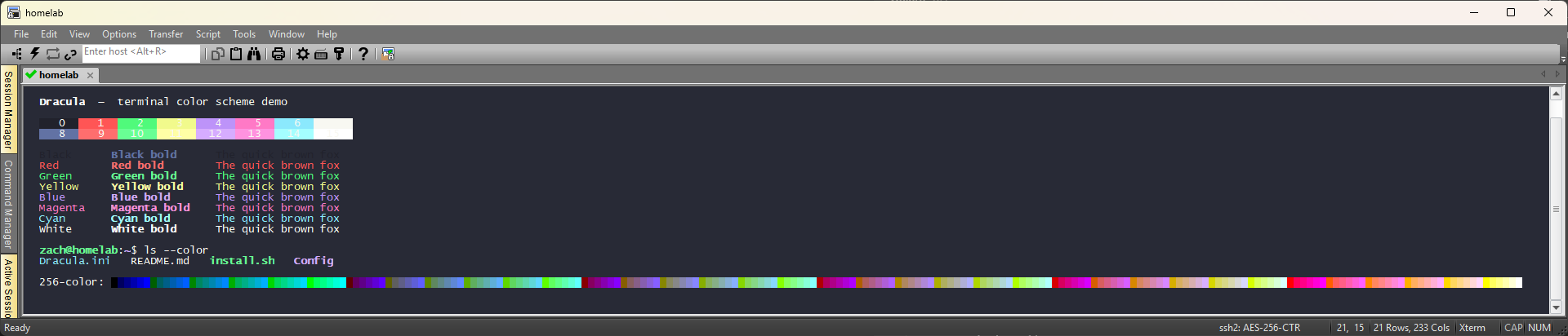
Run colors.sh in a Dracula-themed session to print all 16 colors, their bold variants, a mock prompt, and a 256-color bar — handy for a screenshot:
bash colors.sh
§Troubleshooting
- The scheme doesn't appear in the list: you edited or created
Color Schemes.ini, which modern SecureCRT ignores. UseGlobal.ini(Method B) or the GUI (Method A). - The scheme appears but the colors are wrong: an older scheme with the same name already exists in
Global.iniwith different values. Edit that line instead of adding a duplicate. - Edits vanish after a restart: SecureCRT was open during the edit, or a
Z:count wasn't incremented to match the number of entries. - No colors at all: the terminal isn't set to Xterm, or ANSI Color is off (see the prerequisite above).