
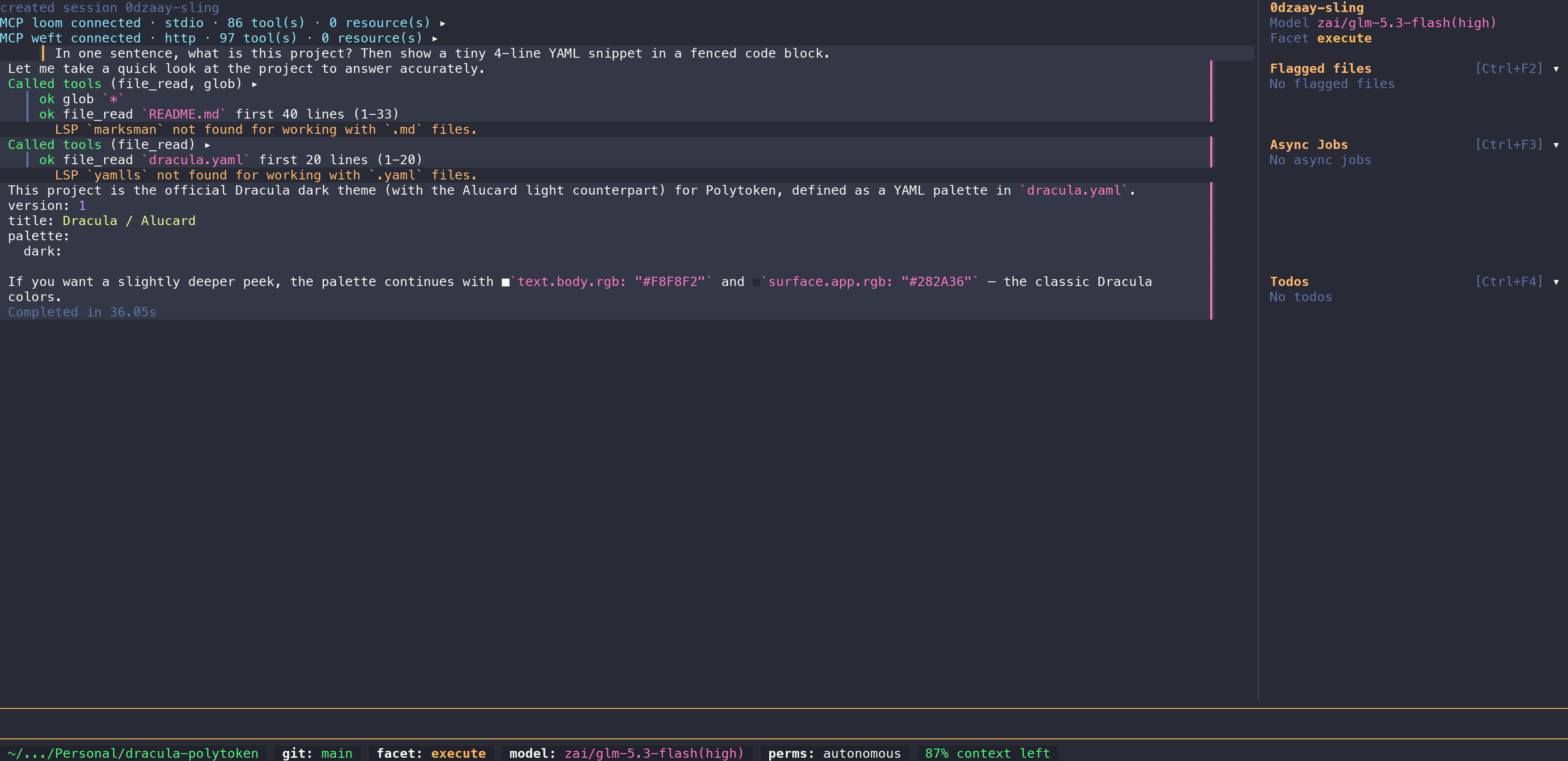
§Polytoken
§Install using Git
If you are a Git user, you can install the theme and keep it up to date by cloning the repo:
git clone https://github.com/dracula/polytoken.git
§Install manually
Download using the GitHub .zip download option and unzip it.
§Activating theme
-
Copy
dracula.yamlinto your Polytoken themes directory:mkdir -p ~/.config/polytoken/themes cp dracula.yaml ~/.config/polytoken/themes/dracula.yamlPolytoken stores user themes under
$XDG_CONFIG_HOME/polytoken/themes(default:~/.config/polytoken/themes). If you setXDG_CONFIG_HOME, use that path instead. -
Optionally validate the theme:
polytoken theme validate ~/.config/polytoken/themes/dracula.yaml -
Set the theme in your Polytoken config (
~/.config/polytoken/config.yaml):tui: theme: dark # or `light` for Alucard, or `auto` theme-file: $USER_DIRECTORY/themes/dracula.yamltui.themepicks the palette:dark(Dracula),light(Alucard), orauto(from the terminal background).tui.theme-filemust be the theme path, including the.yamlextension.$USER_DIRECTORYresolves to your Polytoken config directory.
Or preview it for the current session only by running
/theme draculainside Polytoken. To confirm Polytoken discovered the file, runpolytoken theme list. -
Boom! It's working ✨