
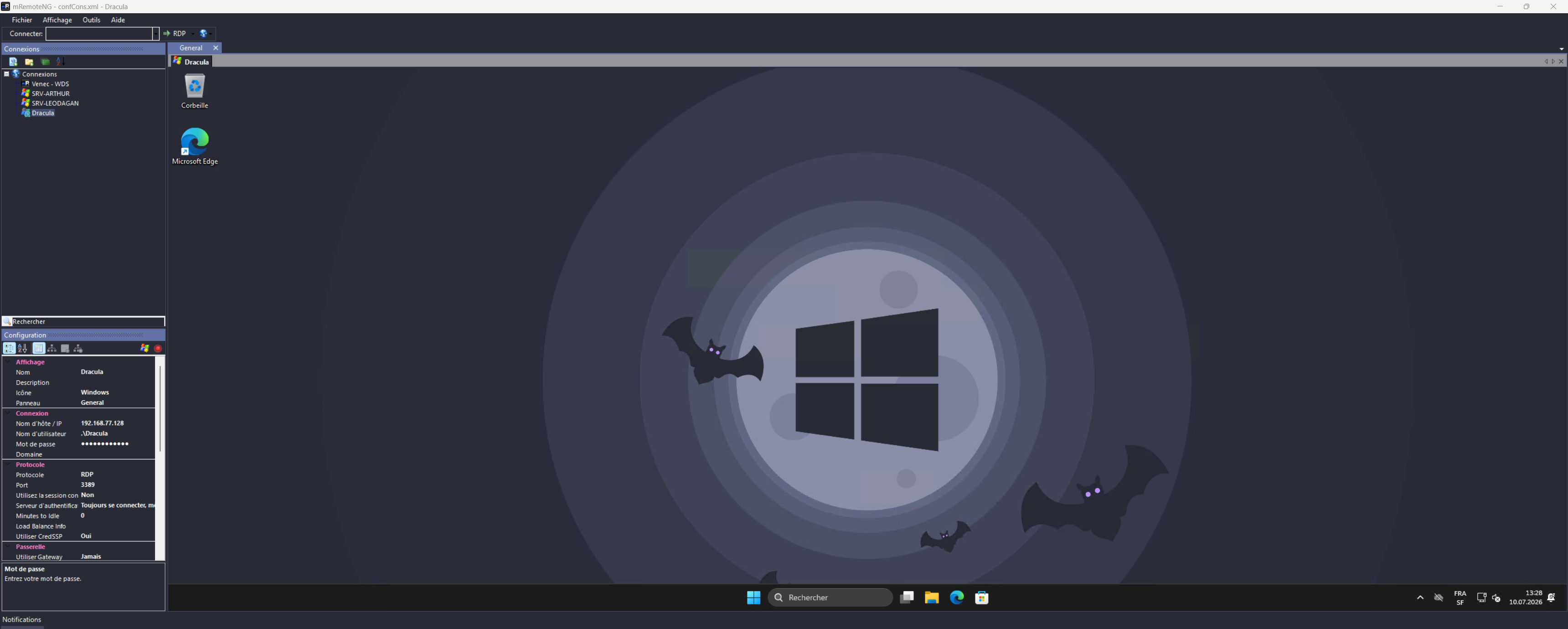
§mRemoteNG
§Install using Git
If you are a git user, you can install the theme and keep it up to date by cloning the repository:
git clone https://github.com/dracula/mremoteng.git
§Install manually
Download the Dracula.vstheme file directly, or use the GitHub .zip download and unzip it.
§Activating theme
§Step 1: Locate the Themes folder
- Open your mRemoteNG installation folder.
- Locate the
Themessubfolder:- Installed version:
%ProgramFiles(x86)%\mRemoteNG\Themes - Portable version:
<mRemoteNG folder>\Themes
- Installed version:
§Step 2: Copy the theme file
- Copy
Dracula.vsthemefrom this repository. - Paste it into the
Themesfolder from Step 1.
§Step 3: Enable and select the theme
- Launch mRemoteNG.
- Go to Tools > Options > Theme.
- Check Enable Themes if it is not already enabled.
- Select Dracula from the theme list.
- Restart mRemoteNG so the theme applies fully to every panel.
The installation is complete, and the theme is ready to use. ✨
§Notes
- A few native Windows controls (for example, some buttons and group boxes on the Notifications options page) are not covered by mRemoteNG's theming system and keep the default Windows look regardless of the selected theme. This is a limitation of mRemoteNG itself, not of this theme.